Part 1
Create the workflow
~5 min
1
Navigate to Workflows
Automation → Workflows
From the left sidebar click Automation, then click Workflows. Click + New Workflow and select Start from scratch.
Automation → Workflows → + New Workflow → Start from scratch
2
Name and configure the workflow
Workflow settings
Name it exactly:
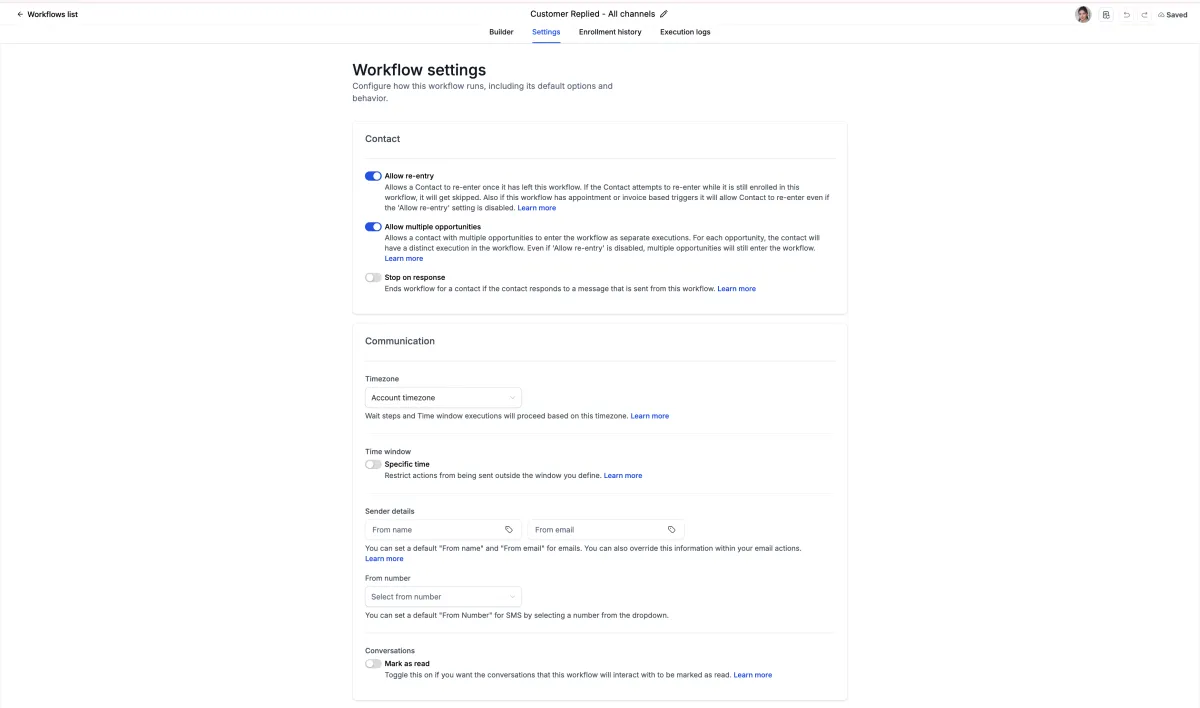
Configure these workflow settings before adding any steps:
AIBS – AI Follow-Up 7 DayConfigure these workflow settings before adding any steps:
| Setting | Value | Why |
|---|---|---|
| Workflow name | AIBS – AI Follow-Up 7 Day | Consistent naming convention |
| Allow re-entry | Off | Prevents a lead triggering the flow twice |
| Stop on reply | On | Core feature — pauses sequence when lead replies |
| Contact timezone | On | Sends messages at the right time for each lead |
| Send window | 9am – 7pm | No messages outside business hours |
💡Stop on reply is the most important setting in the entire workflow. Turn it on before you add a single step. If you miss it, you'll be sending Day 5 follow-ups to leads who already booked.
3
Set the trigger — new-lead tag added
+ Add Trigger
Click + Add Trigger. Select Contact Tag. Configure it as:
| Field | Value |
|---|---|
| Trigger type | Contact Tag |
| Filter | Tag added |
| Tag name | new-lead |
ℹThis fires every time the
new-lead tag is applied to a contact — whether from a form, an ad, a funnel embed, or manually. One trigger covers every lead source.⚠Make sure the
new-lead tag is removed when a contact becomes an active client (you set this up in the pipeline walkthrough — Trigger 4, Step 12). If not, existing clients can re-enter this workflow.Part 2
Build the 7-day sequence
~15 min
4
Day 1 — immediate outreach (SMS + email)
Fire immediately on trigger
Add two actions back-to-back — no wait step before these. They fire the moment the trigger fires.
Action 1 of 2 — fires immediately:
1
Send SMS — Use snippet: AIBS – Welcome new lead SMS2
Send email — Use template: Welcome – New leadSMS preview — Day 1
Hey
{{contact.first_name}}! Thanks for reaching out to AI Boost Solutions. I'd love to learn more about your goals — grab a quick call here: 💡Speed matters on Day 1. Studies show leads contacted within 5 minutes are 9x more likely to convert. The SMS fires first — email follows immediately after.
5
Add first reply check after Day 1
If/Else → replied?
After the Day 1 messages, add a Wait step then an If/Else condition to check if the contact replied. This is the branching logic that makes the sequence intelligent.
Step sequence after Day 1 messages:
1
Wait — 2 days (respects send window setting)2
If/Else condition — Contact replied = Yes→
YES branch: Update AI Follow-up Status = Paused → End workflow→
NO branch: Continue to Day 3 messagesℹThe If/Else + "Stop on reply" setting work together. "Stop on reply" handles real-time replies mid-sequence. The If/Else handles replies that came in during the Wait period.
6
Day 3 — follow-up (SMS + email)
After 2-day wait
On the NO branch from Step 5, add the Day 3 messages. Tone is warmer and more direct than Day 1 — they've seen your first message, this is a nudge.
Day 3 actions (NO branch):
1
Send SMS — Use snippet: AIBS – Day 3 follow-up SMS2
Send email — Use template: Day 3 – Still thinking it over?SMS preview — Day 3
Hey
{{contact.first_name}}, just checking in — did you get a chance to look at my last message? Happy to answer any questions. Here's that link again: 7
Day 5 — value add (email focused)
After another 2-day wait
Add another Wait 2 days → If/Else replied check → on the NO branch, send Day 5. Day 5 leads with value — share something useful, not just a booking link.
Day 5 actions (NO branch):
1
Send SMS — Short: "Wanted to share something quick with you…"2
Send email — Use template: Day 5 – Here's what we've built for businesses like yours💡Day 5 is a pattern break. Instead of "book a call," give them something — a quick result, a case study, a before/after. Make the email worth opening regardless of whether they book.
8
Day 7 — final message + lead score update
Last touchpoint
Add another Wait 2 days → If/Else replied check → on the NO branch, send Day 7. This is the final message — direct, low pressure, no hard sell.
SMS preview — Day 7
Hey
{{contact.first_name}} — last message from me, I promise. If the timing isn't right, no worries at all. When it is, I'm here: After Day 7 messages — final actions on BOTH branches:
1
Update contact field — AI Follow-up Status = Completed2
Update contact field — Lead Score = 30 (no reply) or 70 (replied, didn't book)3
Add tag — follow-up-complete4
Remove tag — new-lead✓The lead score update at the end is what feeds your reporting. Contacts who never replied (score 30) go into a re-engagement bucket. Contacts who replied but didn't book (score 70) get a human follow-up.
Part 3
Configure reply handling
~5 min
9
What happens when a lead replies mid-sequence
Stop on reply behavior
When Stop on reply is enabled and a lead replies to any message in the sequence, the workflow pauses immediately. Here's the full behavior:
| Scenario | What happens | Next step |
|---|---|---|
| Lead replies with a question | Workflow pauses, conversation goes to inbox | Human takes over |
| Lead replies "STOP" or "Unsubscribe" | Workflow stops, contact opted out | Do not contact |
| Lead books a call | Booking trigger fires (separate workflow) | Onboarding pipeline triggers |
| Lead replies positively but doesn't book | Workflow pauses, score updates to 70 | Human follow-up |
ℹCreate a separate notification workflow triggered by Inbound message received that pings your assigned user when any paused lead sends a new message. Don't rely on checking the inbox manually.
10
Add internal team notification on reply
New workflow — inbound message
Create a separate companion workflow to notify your team the instant a lead in the follow-up sequence replies.
AIBS – Reply Alert · new workflow:
T
Trigger: Customer repliedF
Filter: Contact has tag: new-lead1
Send internal notification — "{{contact.first_name}} just replied to the follow-up sequence"2
Update contact field — AI Follow-up Status = Paused3
Assign to user — Round-robin or specific team memberPart 4
Test and activate
~5 min
11
Full sequence review before publishing
Workflow canvas check
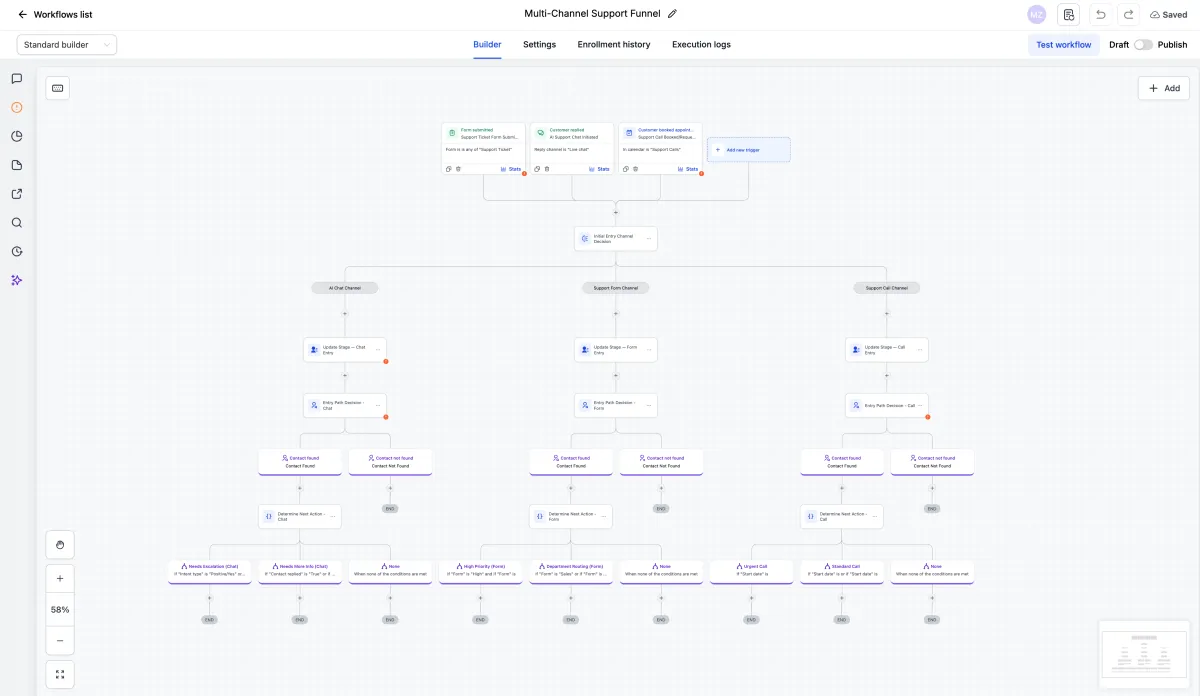
Before clicking Publish, verify the complete workflow on the canvas looks like this:
Trigger
Contact tag added → new-lead
Entry point for all leads from all sources
Day 1
SMS + Email — welcome message
Fires immediately. No wait before this.
Day 3
Wait 2 days → If/Else replied → NO → SMS + Email
Soft follow-up. Warmer tone than Day 1.
Day 5
Wait 2 days → If/Else replied → NO → SMS + Email
Value-led message. Not a booking push.
Day 7
Wait 2 days → If/Else replied → NO → SMS + Email → End
Final message. Low pressure. Update lead score + tags on both branches.
⚠Every If/Else branch needs actions on both the YES and NO paths — even if the YES path just updates a field and ends. A branch with no actions will error silently.
12
Test with a real contact then publish
Test mode → Publish
Use AI Boost Solutions' test mode to enroll a test contact before going live.
✓
Create a test contact with your real phone and email
✓
Manually add the tag
new-lead to the test contact✓
Confirm SMS arrives within 60 seconds on your phone
✓
Confirm email arrives and merge tags resolve — no broken
{{contact.first_name}}✓
Reply to the SMS — confirm workflow pauses and team notification fires
✓
Check contact record — confirm AI Follow-up Status field updated to Paused
✓
Re-enroll the test contact to check Allow re-entry is off (should not re-enter)
✓
All checks pass → click Publish
✓Once published, every new contact tagged
new-lead — from your funnel embeds, forms, or the onboarding pipeline — will automatically enter this sequence. The system runs itself.